Click anywhere in a photo to get its codes and the closest color name. Your image never leaves your device.
or drop or paste one here
Samples
Drop the image to open it
Opening the image…
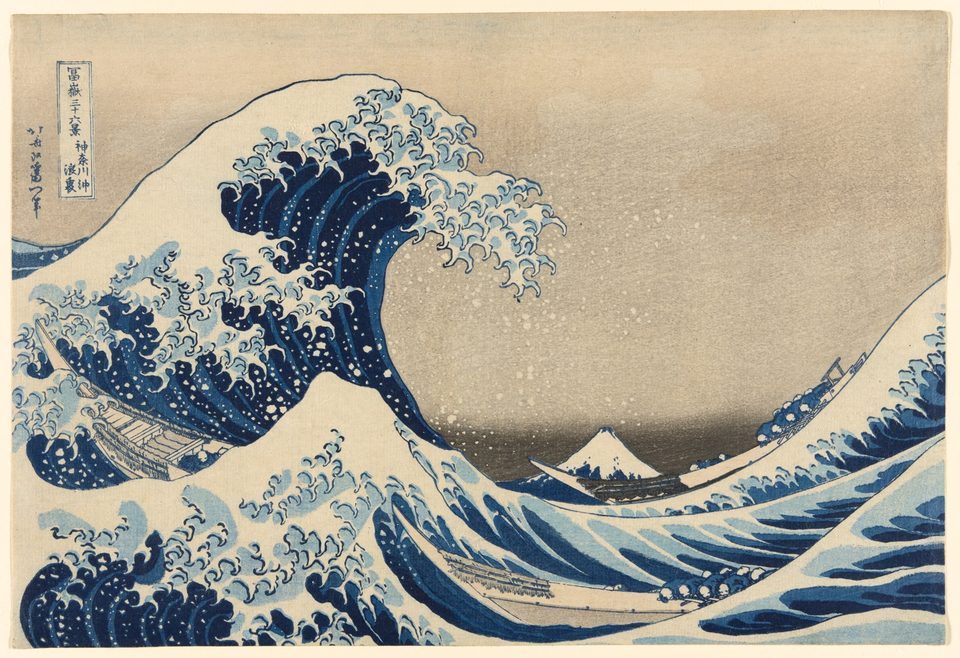
Katsushika Hokusai, Under the Wave off Kanagawa (The Great Wave), 1830/33. More about its colors on the Prussian blue page.
Your picks
Click to pick · drag to scrub · arrow keys move one pixel · paste a screenshot with Ctrl+V or ⌘V
Colors in this image
How to pick a color from an image
Open an imageChoose a file, drag one onto the page, or copy a screenshot and paste it with Ctrl+V (⌘V on a Mac).
Click the color you wantThe magnifier shows the pixels under the pointer. Arrow keys move the pick one pixel at a time, and 3×3 or 5×5 averages out grain.
Copy a code or open the colorClick any code to copy it, or open the closest named color for its shades, palettes and history.
Questions
Is my image uploaded anywhere?
No. The picker opens the image inside your browser and reads the pixels there. Nothing is sent to RGB.wiki or anyone else, and the image is gone when you close the page.
Why doesn’t the code match the color I see in real life?
A photo records light, not the surface itself. The light source, the camera’s white balance, shadows and file compression all shift the pixels, so one red wall can give many codes. Pick from an evenly lit spot, and use the 5×5 average to smooth out grain.
How is the closest color name found?
Each pick is compared with every named color on RGB.wiki in OKLab, a color space where equal distances look about equally different. The five nearest are listed with a similarity score: 100% is the same color, above 90% the difference is barely visible, and below 60% it is a different color.
What are the colors in this image?
Every pixel is grouped into up to eight main colors. Each one shows how much of the image it covers and its closest name. Click one to see its codes and where it sits in the image.
Which files can I open?
JPG, PNG, WebP, GIF and any other image your browser can show. HEIC photos from an iPhone open in Safari but not in every other browser. Photos over 3,000 pixels on the long side are scaled down first, so a 1 px pick there blends a few neighboring pixels.
Can I pick a color from my screen?
Yes, in Chrome and Edge: use Pick from screen to grab any pixel on your display, even outside the browser. In other browsers, take a screenshot and paste it here.